iPhone Medication Reminders Not Working? How to Fix Them
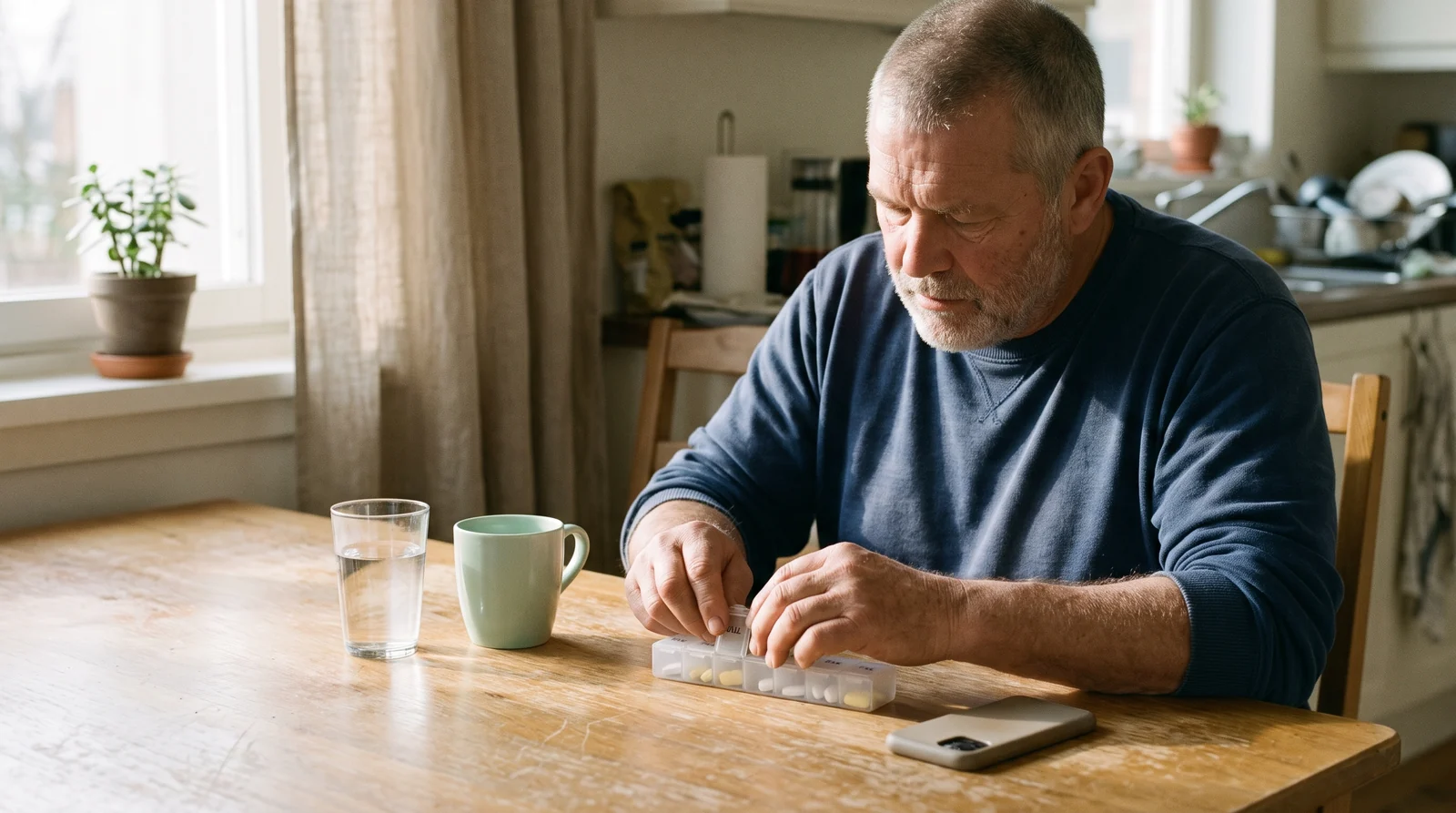
When iPhone medication reminders don't show up, arrive late or make no sound, the cause is usually one of five settings: the medication has no schedule or the wrong time, Health notifications are turned off or held for a Scheduled Summary, Silent mode is on, a Focus such as Sleep or Do Not Disturb is silencing Health, or reminders were muted from the Lock Screen. Work through the steps below in order. The last one, Follow Up Reminders with Critical Alerts, is what makes a missed dose hard to miss. Every menu name here comes from Apple Support's guides for the current iOS.
| What you notice | Most likely cause | Where to fix it |
|---|---|---|
| No reminder for one medication | No schedule, wrong time, or it was archived and restored | Step 1 |
| No reminders from Health at all | Notifications turned off for Health | Step 2 |
| Reminders arrive late, several at once | Health is set to Scheduled Summary | Step 2 |
| Reminder sits silently in Notification Center | Muted for an hour or for today, or Sounds off | Step 2 |
| Silent at night or at work | Silent mode, low alert volume, or a Focus | Step 3 |
| One alert, then nothing if you miss it | Follow Up Reminders turned off | Step 4 |
| Stopped after a new iPhone or an update | Schedules or settings to recheck | After a new iPhone |
Step 1: Confirm the schedule and time in Health
The Health app reminds you to log a medication based on the schedule you created for it. A medication you log only as needed has no schedule, so it never triggers a reminder.
To check or change the time:
- Open the Health app and tap Browse, then Medications.
- Scroll down to Your Medications and tap the medication.
- Scroll down to Schedule, tap Edit, then tap a field to change it.
If the medication isn't on the list yet, tap Add a Medication (or Add Medication), enter the name, choose the type and strength, then follow the schedule screen. To pick a different pattern, tap Change under "When will you take this?" and choose an option such as On a Cyclical Schedule or Every Few Days.
One trap catches people who tidy their list. If you archive a medication and later bring it back, Apple notes that any schedule you set before is not preserved. The medication returns with no reminders until you set the schedule again. Apple's steps for all of this are on Track your medications in Health on iPhone.
Step 2: Let Health alert you in Settings
Medication reminders are ordinary Health notifications, so they follow Health's notification settings. Go to Settings > Notifications, then tap Health below Notification Style, and check:
- Allow Notifications is on.
- Under Alerts, Lock Screen, Notification Center and Banners are selected.
- Sounds is on, so the reminder plays a tone.
- Time Sensitive Notifications is on, if the switch appears for Health.
- Under Notification Delivery (shown if you use Scheduled Summary), Immediate Delivery is selected.
That last one explains most "late" reminders. A Scheduled Summary collects notifications and delivers them at the times you set, so a 9 am reminder can turn up at noon with the rest of the batch. iPhone sometimes asks how an app should notify you (immediately, not at all, or in a scheduled summary), and choosing the summary there moves Health's reminders into it. The settings are described in Change notification settings on iPhone.
Reminders that "vanish" often were muted. Swiping left on a notification and tapping Options offers Mute for 1 Hour and Mute for Today. A muted app's notifications go straight to Notification Center without a sound, a banner or the screen lighting up. To open Notification Center, swipe up from the middle of the Lock Screen, or swipe down from the top-left corner on any other screen. To undo the mute, swipe left on a Health notification in Notification Center, tap Options, then tap Unmute (View and respond to notifications on iPhone, Use notifications on your iPhone or iPad).
Step 3: Rule out Silent mode, alert volume and Focus
Silent mode. When it's on, iPhone doesn't play alerts, though it may still vibrate. Turn it off in Control Center, in Settings > Sounds & Haptics, with the Action button (press and hold) or with the Ring/Silent switch, depending on your model (Silence iPhone).
Alert volume. By default, alerts match your ringtone volume, and with the volume turned all the way down, notification sounds don't play. In Settings > Sounds & Haptics you can turn off Match Ringtone Volume under Alerts and System Sounds and set that slider on its own (Change iPhone sounds and vibrations).
Focus. A Focus decides which apps can notify you while it's on. To make sure Health gets through:
- Go to Settings > Focus and choose a Focus, for example Do Not Disturb, Sleep or Work.
- Tap Apps (or Choose Apps), tap Allow Notifications From, then add Health.
- On the same screen you can turn on Time Sensitive Notifications.
If a Focus uses Silence Notifications From instead, make sure Health isn't on that list. Repeat this for every Focus you use (Allow or silence notifications for a Focus on iPhone).
The Sleep Focus deserves its own check, because it follows the sleep schedule you set in the Health app (Turn on or schedule a Focus on iPhone). Picture an evening dose scheduled for 10:00 pm and a bedtime of 9:30 pm: the reminder lands inside Sleep and stays quiet unless Health is on the allowed list. If your iPhone uses the Reduce Interruptions Focus, which silences notifications it judges less important, add Health under Customize Focus > Apps so it's always allowed (Summarize notifications and reduce interruptions).
Step 4: Turn on Follow Up Reminders and Critical Alerts
These two settings turn a single notification into something closer to an alarm.
- In the Health app, tap Browse, then Medications.
- Tap Options at the bottom of the screen, then turn on Follow Up Reminders. Health will remind you again if a medication hasn't been logged 30 minutes after its scheduled time.
- Tap Critical Alerts, tap the button next to a medication, then tap Allow. Do this for each medication that matters most.
Critical Alerts appear on the Lock Screen and play a sound even if a Focus is on or iPhone is muted. That's the closest the Health app gets to a medication alarm. If they become too much, turn them off in Settings > Apps > Health > Notifications with the button next to Critical Alerts.
Follow-up reminders depend on logging. When a reminder arrives, press and hold the notification and choose an option, or open Health and tap Taken or Skipped below the medication. A dose you took but never logged still counts as not logged, so the follow-up arrives anyway.
After a new iPhone or an iOS update
Apple notes that for Health data to sync across devices, they need to be signed in to the same Apple Account, connected to the internet and updated to the latest iOS. To check that Health is syncing, go to Settings > [your name] > iCloud, tap See All next to Saved to iCloud, tap Health and make sure Sync this iPhone is on (Manage Health data on your iPhone, iPad, or Apple Watch).
Then open Health > Browse > Medications and tap each medication to confirm its schedule is still there. While you're at it, run through Steps 2 to 4 once on the new phone or after the update: it takes a few minutes and rules out a notification, Focus or Critical Alerts setting that isn't what you expect. If everything checks out and reminders still fail, report it to Apple Support.
When a second reminder app is the safer backup
If a missed or late dose would matter, ask your doctor or pharmacist which doses are time critical, and don't rely on one reminder alone. The simplest backup is an alarm in the Clock app at the same time: Apple notes that Clock alarms play through the speaker even when Silent mode is on (Silence iPhone).
A dedicated reminder app is the other option. Dozzy, for example, can remind you again at an interval you choose when a dose isn't marked as taken, and its family mode notifies a relative who follows you when you miss one. Our comparison of medication reminder apps for iPhone lists more choices if you want to compare.